Creating and Editing Reservations
Every new or existing booking on the admin side opens in the same reservation form. This page covers what the form shows, what each field does, and how to finish a booking.
For the customer-side booking experience, see Booking a Court.
Opening the Form
Two ways to open the reservation form:
- Drag-select an empty slot on the Booking calendar. The form opens pre-filled with the court, date, and time you dragged over.
- Click Edit on a booking — either on a block in the calendar, or on a row in the All bookings list.
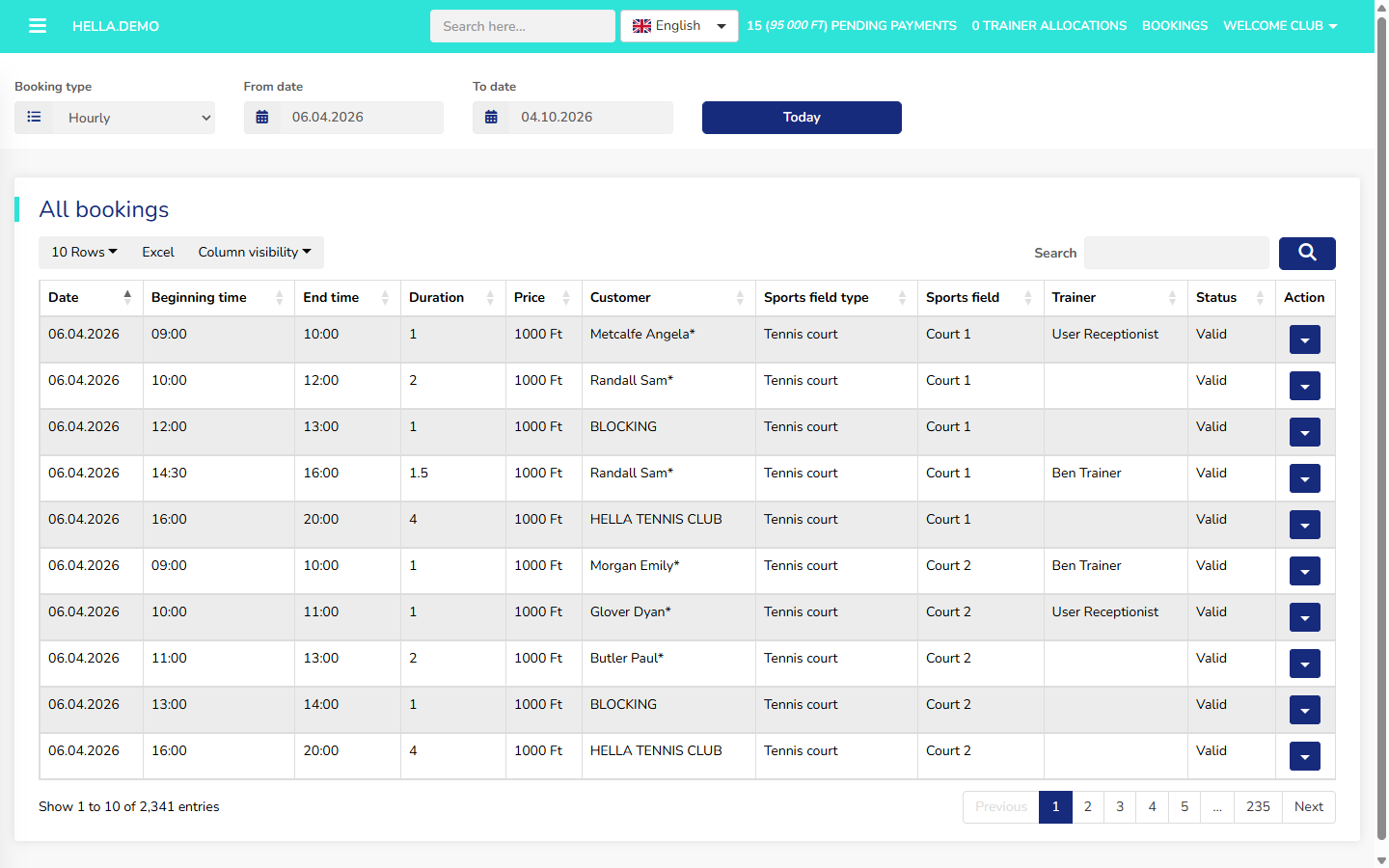 The All bookings list — each row has Edit, Cancel booking, and Delete booking actions.
The same form handles both create and edit. When creating, it is titled New reservation; when editing, it is titled Modify booking.
The Reservation Form
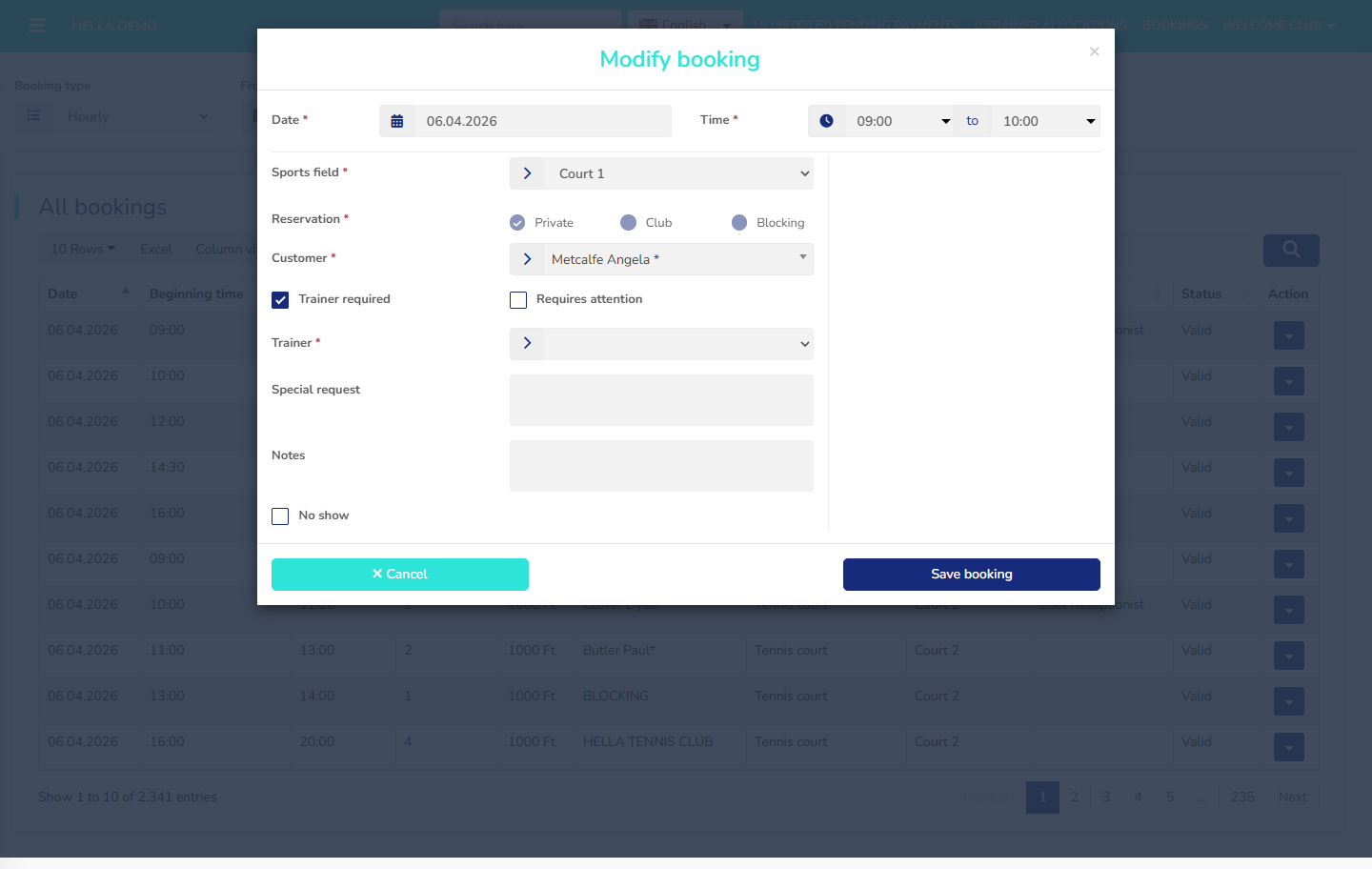 The full reservation form — top row has date and time, the middle shows court, reservation mode, and customer, and the right-hand panel shows the calculated price.
Date, Time, and Court
At the top of the form you always set:
- Date — the day of the booking.
- Time — the start and end time. Bookings use 30-minute start increments and must be at least 60 minutes long; both limits are club settings.
- Sports field — which court. The dropdown lists every court the club has configured.
For daily-booked field types (where the court is reserved for a whole day rather than an hour range), the Time row is replaced by a Till date field — pick a start date and an end date instead of a start time and an end time.
Reservation Mode
Below the court dropdown is a required radio group — Reservation: Private, Club, or Blocking. This is an admin-only choice; customers do not see it.
- Private — a normal paying booking on behalf of a named customer. This is the default.
- Club — an internal booking (staff training, club event). No customer charge is generated.
- Blocking — a maintenance or hold reservation. The slot is blocked on the calendar without a paying customer attached. Use this when a court is down for repairs, reserved for a lesson plan, or otherwise off limits.
With Blocking selected, the customer field is skipped — a blocking reservation does not attach to a person.
Customer
For Private and Club bookings, pick the person in the Customer dropdown — it supports search by name. If the person is not yet in the system, click the + button next to the dropdown to open the new-customer form in place. Once you save the new customer, they are selected automatically and you can finish the booking in one go.
Recurring Series
Tick Is recurring to turn the booking into a weekly series — a second row appears with Day of week and Till date. See Recurring reservations for the full behaviour.
Trainer
Tick Trainer required to request a trainer for the booking. An extra Trainer dropdown then appears beneath it, listing the club's coaches.
Requires Attention
Tick Requires attention to flag the booking for staff follow-up — for example, when the customer asked for something unusual, or when the booking needs a manager's eye before the day. Flagged bookings appear in the Require attention list in the side menu, so they are easy to find.
Shared Reservation (Split Payment)
Tick Shared reservation to split the booking's cost between several players. This checkbox is only active when the club has turned on split payment globally and allowed it on the chosen court's field type. Depending on the court, the choice may be optional (your call) or required (forced on). See Payments & Credits — Split Payment for how the split works end to end.
Training Context
For training-related bookings, the form shows a Package radio with Course and Training group options, plus a dropdown for the matching course or training group. This lets the booking count toward a customer's training package. See Training Model for what these packages mean.
Reservation Options
Some court types let the club configure extras — for instance ball-hire, racket-hire, or lighting. When the chosen court type has extras configured, they appear on the form as checkboxes or dropdowns; the admin adds or removes them as the customer asks. Each extra can have a fixed price, an hourly price, or both — its cost is folded into the total.
Notes and Attention Flags
Two free-text fields sit near the bottom of the form:
- Special request — a short note from the customer (up to 200 characters). Visible to the customer.
- Notes — an admin-only note (up to 1000 characters). Only staff see it.
When editing an existing booking, a No show tick box is visible — tick it if the customer did not turn up. This records the no-show against the booking for later reports.
Price Panel
On the right side of the form, a Price panel shows the calculated cost. It includes:
- Price — the standard rate for the chosen court, date, time, and options.
- Discounted price — the price after any applicable customer discount.
- Number of individual bookings — for a recurring series, how many bookings will be created.
- Total price / Total discounted price — the sum across the whole series (for one-off bookings, the same as the single-instance price).
The system calculates the price automatically from the season's pricing, the court, the time slot, any options selected, the customer's discount group, and (for recurring series) the number of instances. See Pricing & Seasons for how pricing is set up.
Price Change Panel (When Editing)
When you edit an existing booking or series, a second panel appears showing what the change will cost. It lists:
- Original price and New price — the totals before and after your change.
- Difference — how much more (or less) the customer will pay.
- Affected reservations — for a series, the list of dates covered by the change.
- To be modified / To be created / To be deleted — how many individual bookings in a series the edit will touch.
Double-Booking Protection
The system prevents booking the same court at the same time twice. If you try to save a reservation that overlaps with an existing one, the form shows an error and blocks the save.
Finishing the Booking
The buttons along the bottom of the form change depending on the mode, the customer, and the club's configuration.
On the left, Cancel is always present; it discards the form without saving.
On the right, one or more save actions appear:
- Save booking — saves the booking with no immediate payment. Use this when no money changes hands (Club and Blocking reservations, or when payment will be collected some other way).
- Book and pay later — saves the booking and marks it as unpaid. The balance turns up in the Pending payments counter for later collection. Whether this button is shown depends on the book-and-pay-later setting; the club can restrict it to club members, enable it for everyone, or turn it off.
- Book and pay now — saves and takes payment in one step. Opens a small dropdown of payment methods: Cash, Receipt, Card, Bank. Cash and Receipt only work when the cash register is turned on and a cash-register operation is currently open.
- Book and pay now (credit) — appears when the selected customer has enough in their credit wallet to cover the booking; saves and deducts the amount from the wallet.
- Proceed to invitees — appears when Shared reservation is ticked; takes you to the split-payment invitee screen where you enter the other players' email addresses. See Payments & Credits — Split Payment for the full flow.
From the demo system
Only club members can use Book and pay later. The cash register is off, so Cash and Receipt are not offered in the payment dropdown. Your system may be configured differently.
Editing an Existing Reservation
Click Edit on a row in the All bookings list, or click the block on the calendar. The same form opens with the current details loaded. Change the fields you need and save.
For a recurring series, editing any instance prompts you to choose whether the change applies to the single booking or to future instances — see Recurring reservations — editing a series.