Booking a Court
The Booking calendar is where you browse availability and reserve a court. It is the main page of the customer portal — you land there as soon as you log in.
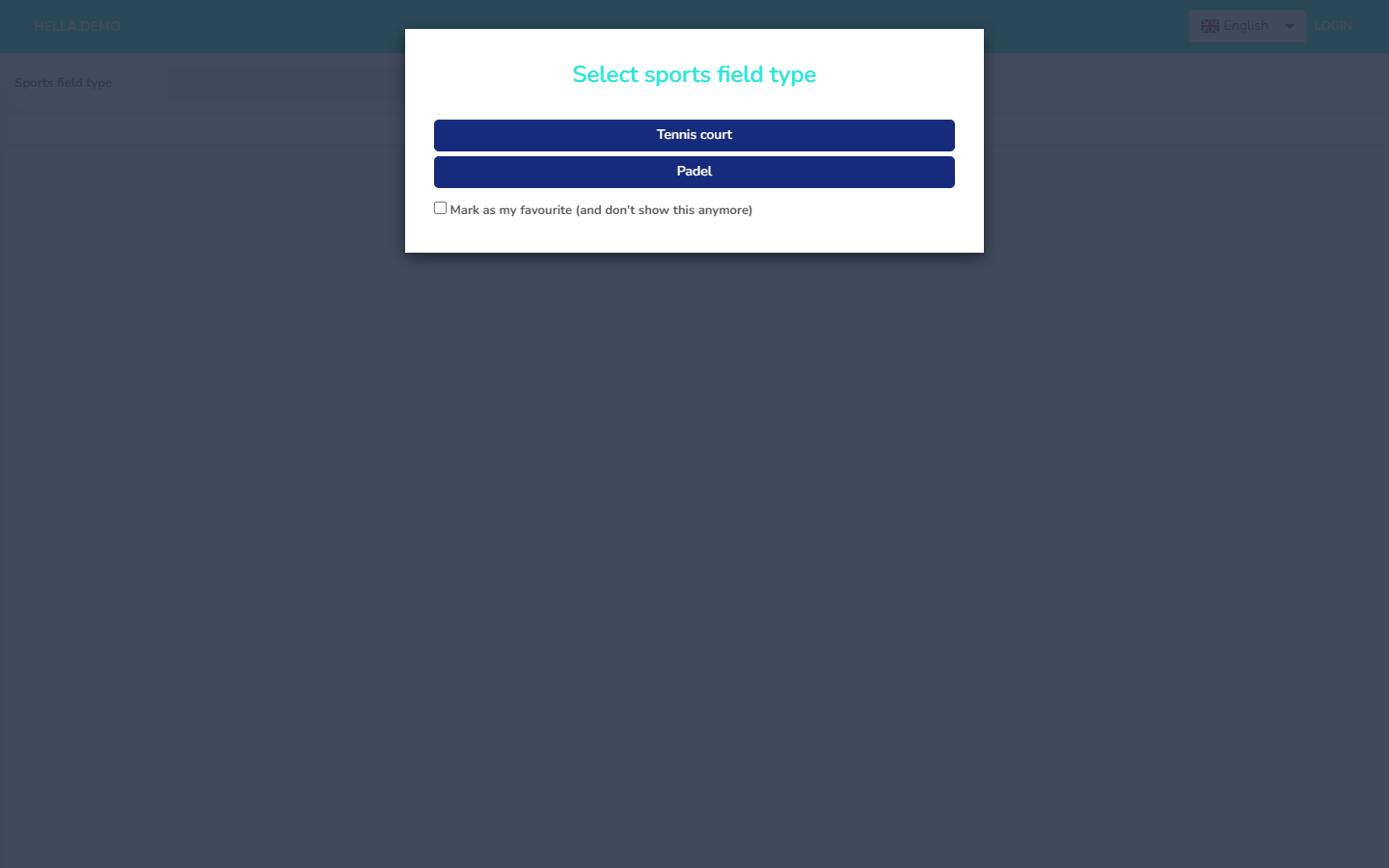 The customer landing page, showing the sport-type tiles offered by the club.
Before You Start: What You Might See
Depending on the club's setup, your entry point may look slightly different:
- Straight to the calendar. If only one sports field type is offered, or the club has turned the sports-field-type picker off, you go directly to the calendar for that type.
- An optional picker. A tile screen asks you to choose a sports field type the first time; your choice is remembered between visits.
- A forced picker. A tile screen always appears first and blocks the calendar until you pick a sport.
- Browse before logging in. With delayed login turned on, you can see availability without an account and only need to log in to confirm the booking. Otherwise you are asked to log in first.
Step-by-Step Booking Flow
1. Pick the Sports Field Type
If the club offers more than one sport, use the Sports field tiles (or the sports-field-type selector at the top of the calendar) to pick the type of court you want.
2. Browse Availability
The calendar shows each court as its own column. Empty slots are available; filled-in slots are already booked.
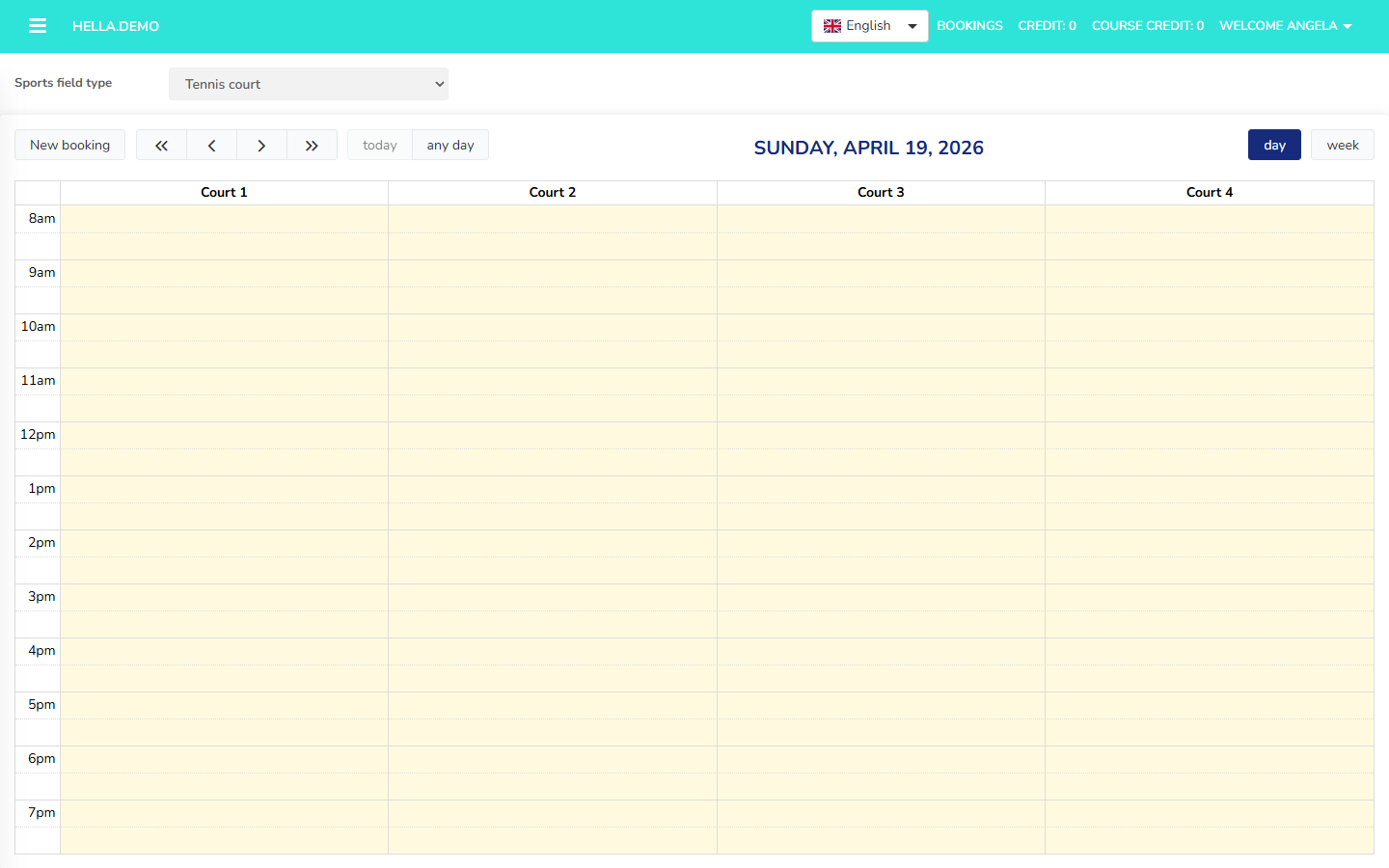 Day view — each column is a court, with bookings laid out against the hours of the day.
Switch between views with the toolbar buttons in the top-right:
- day — a single day, one column per court (the default).
- week — a week at a time, still broken down by court.
- Month timeline — shown instead of day/week for field types that book by the day rather than by the hour.
Jumping around the calendar
Use today to jump back to today, and any day to pick a specific date from a mini-calendar.
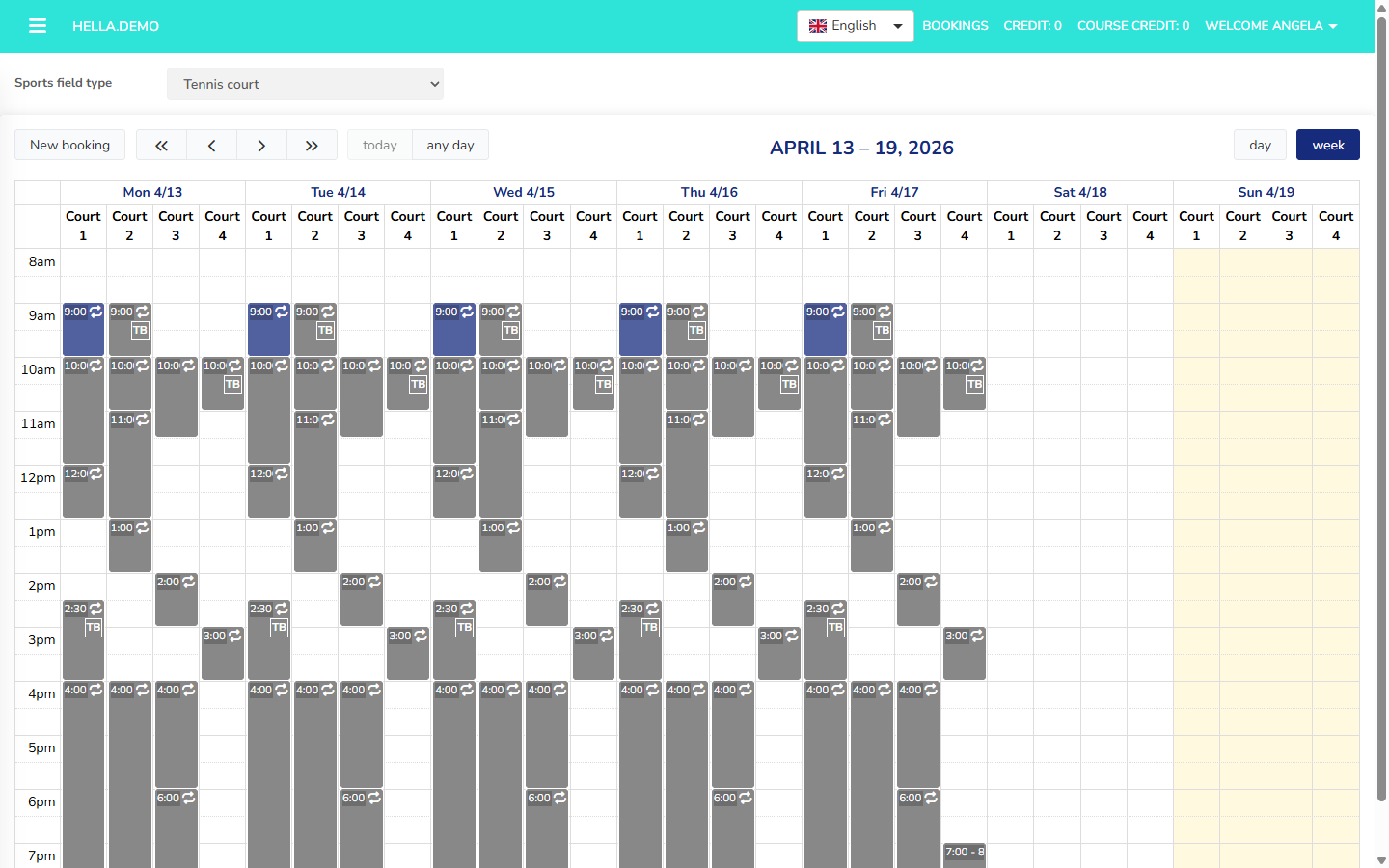 Week view on the same calendar.
Which view the calendar opens with is a club setting — see the default calendar view.
3. Open the Booking Form
Click New booking in the toolbar, or click an empty slot in the calendar. The new-booking form opens as a single modal, pre-filled with the date and time you clicked on.
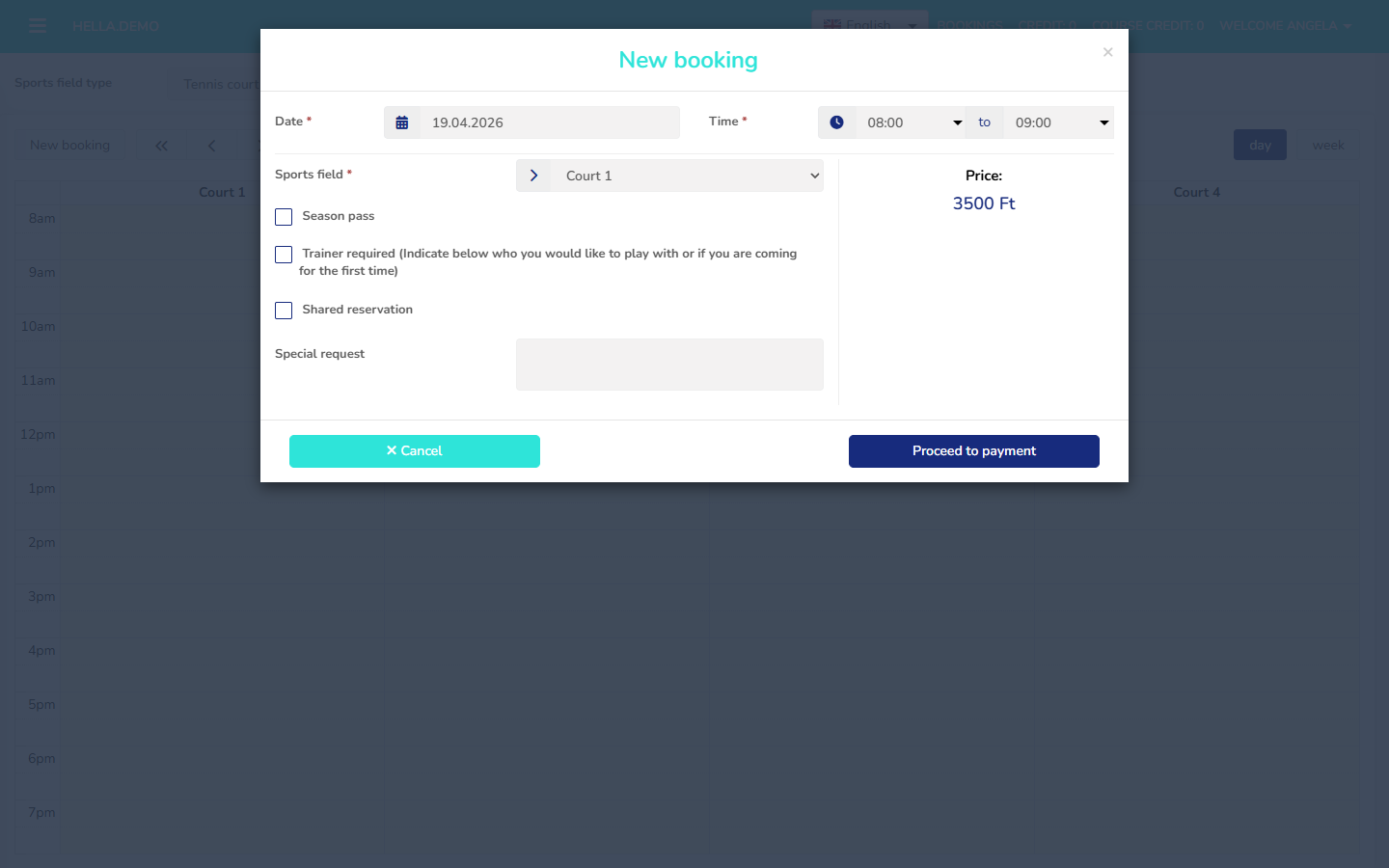 The New booking form collects date, time, court and any extras in a single step.
4. Fill In the Details
The form is one modal, but its length depends on what your club has enabled — extras appear or disappear based on settings. You always see:
| Field | Description |
|---|---|
| Date | The day of your reservation |
| Time | Start and end time |
| Sports field | The specific court |
Pick a start time in 30-minute increments. Bookings must be at least 60 minutes long. See Core Concepts for the full rules.
5. Choose Optional Extras
Depending on what the club offers, the form may also show:
- Season pass — use your season pass for this booking (only if the court accepts season passes).
- Trainer required — request a trainer for your session, available when the club has trainer requests turned on.
- Shared reservation / split payment — share the cost between several players. This only appears when the club has enabled split payment globally and for this court type. Depending on the court, it may be optional or required. See Payments & Credits for how it works.
6. Review the Price
The calculated price appears on the form before you confirm. The club's currency is shown next to every price.
Campaign discounts
Discounted campaign slots appear with a coloured background on the calendar. The discount is applied automatically when you book one.
7. Proceed to Payment
Click Proceed to payment to finish the booking. Cancel discards the form without saving.
If the booking has to be paid online, you are redirected to the payment provider; otherwise the booking is confirmed immediately.
Booking Limits
How far ahead you can book, and how close to the start time you can still cancel, are both club settings. Both can differ for casual visitors and club members.
- Booking ahead, casual visitors — how many hours in advance a casual visitor can book.
- Booking ahead, club members — how many hours in advance a club member can book.
- Cancellation deadline, casual visitors — minimum hours before the start time.
- Cancellation deadline, club members — minimum hours before the start time.
From the demo system
- Casual visitors: 168 hours (7 days) ahead; cancel at least 24 hours before.
- Club members: 168 hours (7 days) ahead; cancel at least 24 hours before.
Your system may be configured differently.
Cancellation
After the deadline passes, you can no longer cancel the booking yourself — contact the club directly if you need to reschedule.
Customer Menu
From the side menu you can reach:
- Booking calendar — back to the main calendar.
- Purchase credit / Credit history — top up your credit wallet and see past movements.
- Purchase course credit / Course credit history — the same for training credits.
- Purchase history — every booking and payment on your account.
- Pending payments — anything you still owe.
- Course subscription — sign up to training courses and sessions.
- Training summary — your attendance and training balance.
- Profile / New family account / Log out — account management, in the user menu at the top-right.