Customer Management
Receptionists and club managers use this area to look after the people who book the courts — finding a customer, opening their profile, registering a new customer by hand, and deciding which profile fields appear on the online sign-up form.
Opening the Customer List
From the side menu, choose Customers under the Customers section.
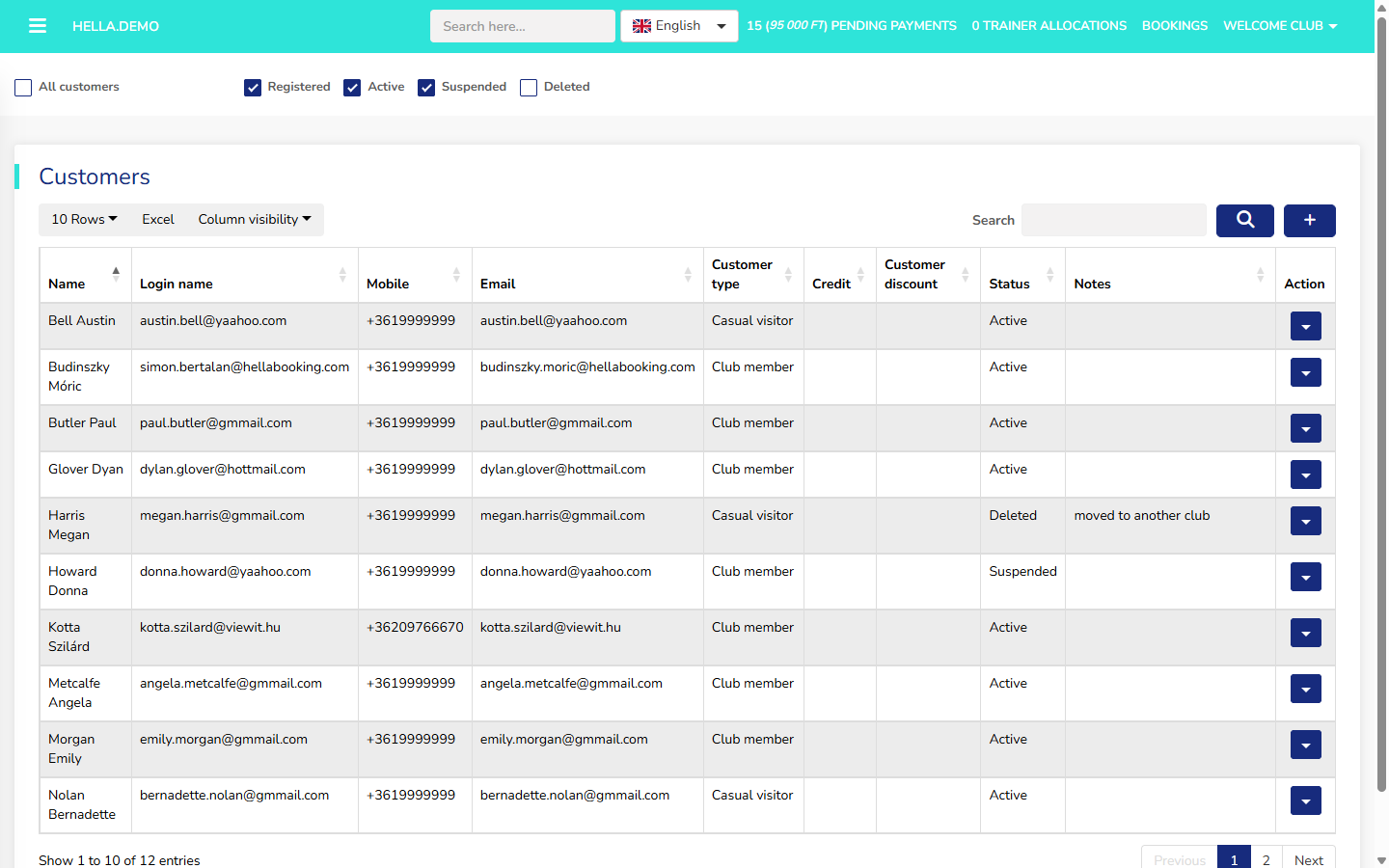 The Customers page — searchable list with status filters at the top and row actions on the right.
The Customer List
Each row shows one customer. The columns are:
- Name — full name.
- Login name — the username the customer uses to sign in.
- Mobile — mobile phone number.
- Email — email address.
- Customer type — whether the person is a casual visitor or a club member.
- Credit — the balance in their credit wallet.
- Customer discount — the discount group they belong to, if any.
- Status — account state (see below).
- Notes — admin-only note on the customer.
- Action — per-row controls (edit, sell credit, and so on).
Above the list are standard table controls — a Search box, Excel export, Column visibility, and a page-size selector.
Filtering by Status
A row of checkboxes above the list narrows the view to specific account states: All customers, Registered, Active, Suspended, Deleted, and — when admin approval is on — Pending approval. Tick the states you want to see.
Starting a New Customer
Above the list sits a + toolbar button. Click it to open the customer form with empty fields; filling it in creates a brand-new customer account on behalf of the person.
Customers can also arrive via online self-registration if the club allows it — see Customer Registration Settings for how that is turned on.
Customer Statuses
Every customer account moves through a fixed set of states (Registered → Pending approval → Active → Suspended → Deleted → Anonymized). The full lifecycle — including when each transition happens and who triggers it — lives on the User Roles & Permissions — Customer Lifecycle page.
When a customer registers online and the club requires approval, the admin reviews them in the Pending approval list and promotes them to Active from the status filter or the customer's profile.
Editing a Customer
Click a row (or the row's Edit action) to open the customer profile as a full-page form. The form is long; fields are grouped into sections, and many sections only show up when the club has chosen to collect that data — see Which Fields Appear below.
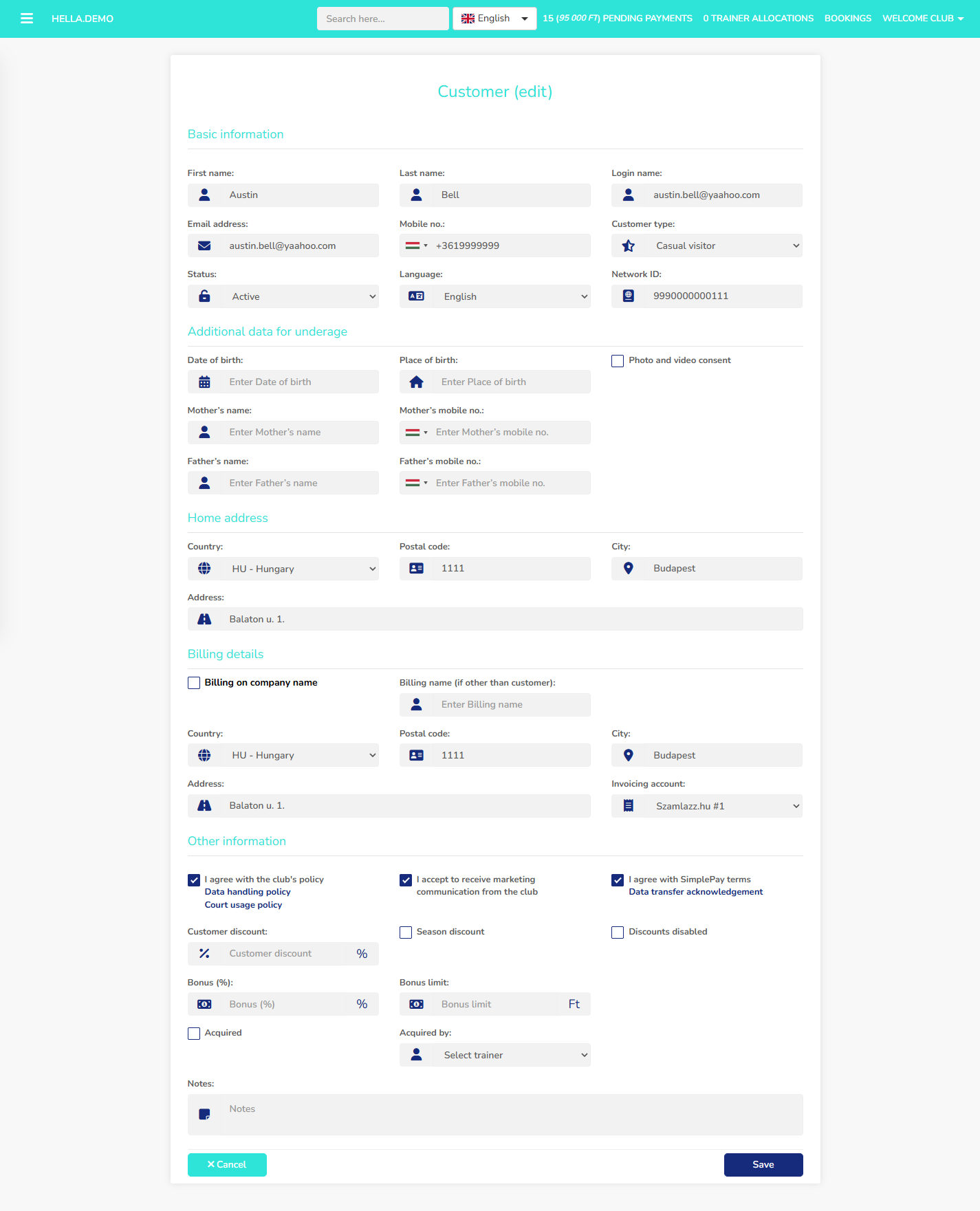 The customer edit form — fields are grouped into Identity, Address, Billing, Consents, and Discounts and Acquisition.
The sections, in order:
Identity
The core profile data: First name, Last name, Login name, Email address, Mobile no., Customer type, Status, Language, Network ID, Date of birth, Place of birth, and the Photo and video consent checkbox. Most of these are always on; a few (date of birth, place of birth, photo/video consent) only appear when the matching setting is on — see Which Fields Appear.
Guardian Fields (for Under-Age Customers)
When the customer is a minor, the form also asks for Mother's name, Mother's mobile no., Father's name, and Father's mobile no. These fields only appear when under-age accounts are enabled and the date of birth is below the age threshold.
Address
The customer's home address — Country, Postal code, City, Address (street line).
Billing
Used when a separate invoice address or company name is needed. Fields: Billing name (if other than customer), Tax number, Country, Postal code, City, Address, and Invoicing account. When the billing address matches the home address, the form offers a quick-copy action.
Consents
Tick boxes for the club-facing policies the customer must accept:
- I agree with the club's policy — the club's data-handling and court-usage policy.
- I accept to receive marketing communication from the club — email / SMS marketing opt-in.
- I agree with SimplePay terms — the online-payment data-transfer acknowledgement (only shown when SimplePay is the active payment provider).
Discounts and Acquisition
Sets the customer's discount eligibility and records how they first came to the club:
- Customer discount — the discount group the customer belongs to.
- Season discount — tick to allow this customer to use the season-pass discount. See Pricing & Seasons — Season Discount Configuration for how season-pass pricing works.
- Discounts disabled — tick to block all group discounts for this customer (useful for staff, VIPs, or problem accounts).
- Bonus (%) and Bonus limit — per-customer bonus percentage applied on top of base pricing, with an optional upper limit.
- Acquired and Acquired by — how the customer was brought in and by whom (salesperson, campaign, referral).
- Notes — free-text admin note, not visible to the customer.
Which Fields Appear
The club decides which profile fields appear on the registration form and on the customer profile page. Each field takes one of three values:
- Hidden — the field does not appear at all.
- Optional — the field appears; the customer can fill it in or leave it empty.
- Required — the field appears and the customer cannot save the form without filling it in.
The settings live in the system parameters reference. The configurable fields are:
- Date of birth
- Weight
- Height
- Social security number
- Sport-medical licence expiry
- Vehicle licence plate
- Allergies
- Course package
- Coupon
- Photo and video consent (media info)
- Custom field 1, Custom field 2, Custom field 3
- Custom checkbox
- Critical notes
From the demo system
Date of birth is optional; every other configurable field is hidden. New customers see only the core identity, address, and consent fields when they sign up. Your system may be configured differently.
Registration and Privacy Settings
Two sets of settings sit outside the field list but still affect how customers are registered and what they can see of one another:
- Registration settings — whether public sign-up is allowed, whether admin approval is required, whether under-age accounts are allowed, and how long passwords last. Documented on the User Roles & Permissions — Customer Registration Settings page.
- Reservation privacy — whether a customer can see other customers' reservation details on the calendar. Controlled by the show other customers' reservations setting; off by default.