Managing the Reservation Calendar
The Booking calendar is the admin's main screen. It shows every court booking for the day, highlights pending work, and is where you start new reservations. It is also the landing page when you log into the club side.
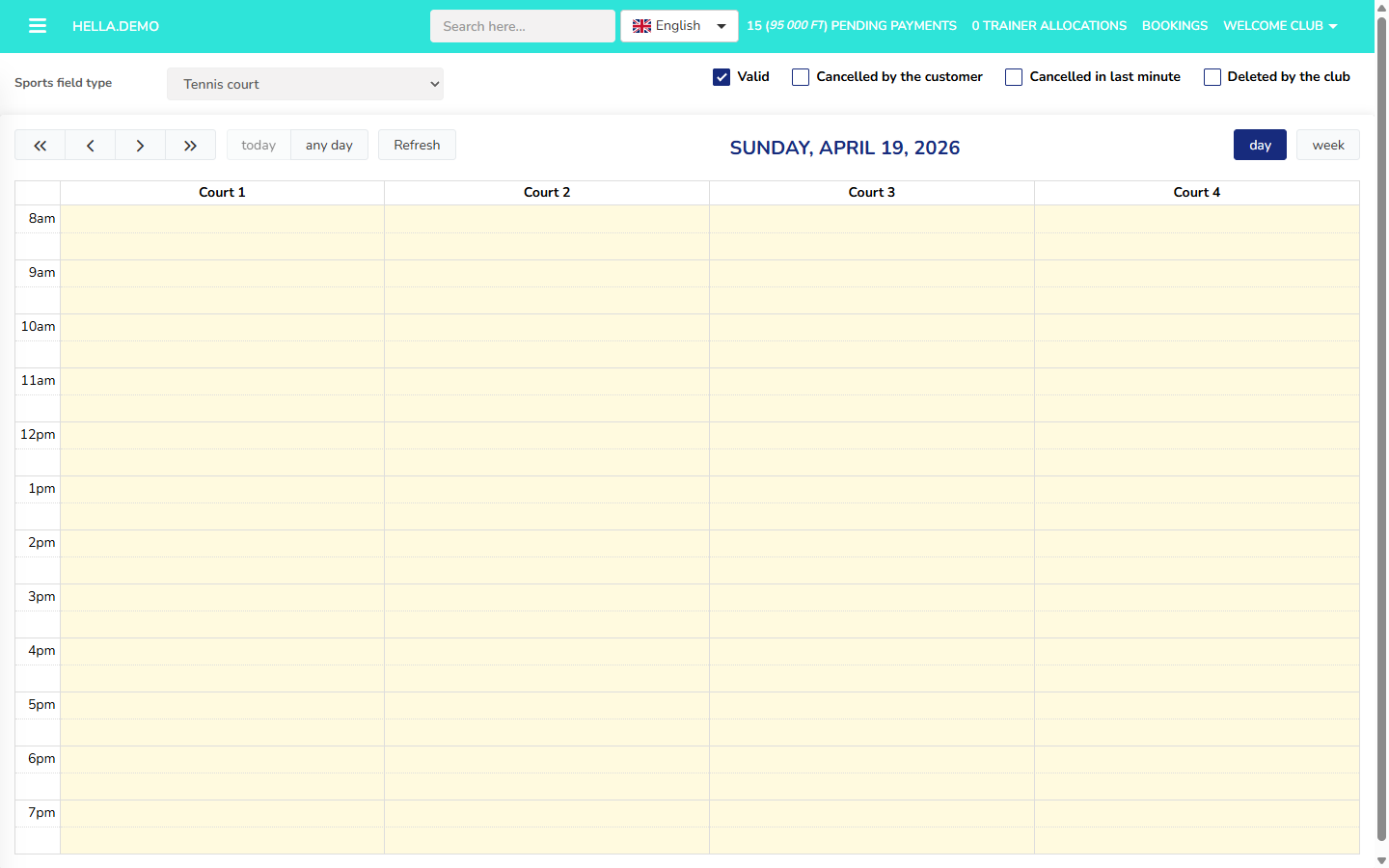 Booking calendar in day view — each column is a court, with bookings laid out against the hours of the day.
Opening the Calendar
From the side menu, choose Booking calendar under the Bookings section. If the side menu is open on another page, the Booking calendar link jumps you back to this screen.
What You See
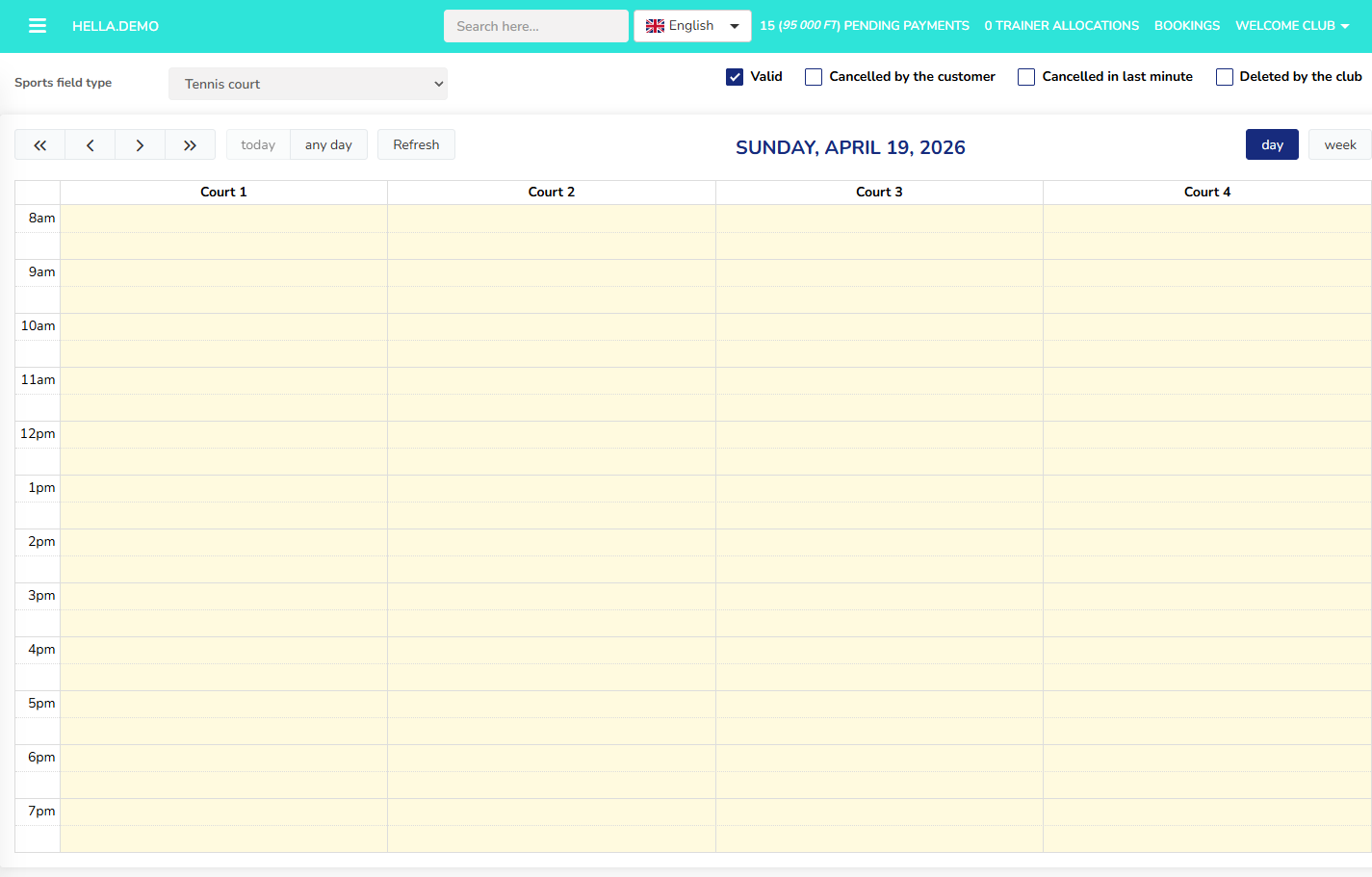 The same calendar with the side menu expanded and the pending-payment and trainer-allocation counters in the top header.
Each court is its own column, with time running top to bottom. Empty slots are available; filled slots are existing reservations. Opening hours appear as shaded areas, so you can see at a glance when the club is open — see Core Concepts — Opening hours for how opening hours are configured.
Two counters appear above the calendar:
- Pending payments — bookings that still need to be paid for. Click the counter to open the full pending-payments list.
- Trainer allocation — bookings flagged Trainer required that still need a trainer assigned. Click the counter to open that list.
Calendar Toolbar
Above the calendar is a small toolbar:
- today — jump back to today.
- any day — pick any specific date from a mini-calendar.
- Refresh — reload the calendar if a colleague has just made a change.
- day — show one day at a time, one column per court (the default).
- week — show a full week, still broken down by court.
Which view the calendar opens with is a club setting — see the default calendar view. The default is day; the club can switch it to week through that setting.
Filtering What You See
Two filters control which reservations appear on the calendar:
- Sports field type — the dropdown at the top of the calendar. Pick a single sport (for example, only padel courts) to hide the rest.
- Status filters — checkboxes that decide which booking statuses appear. By default only Valid bookings are shown; tick Cancelled by customer, Late cancelled, or Deleted by club to see those too. The full reservation status lifecycle is on the Status lifecycles reference page.
A search box at the top of the page looks up customers and bookings by name — type a customer name and press Enter.
Starting a New Reservation
There is no separate "New booking" button on the admin calendar. You start a new reservation in one of two ways:
- Drag-select on the calendar. Click and drag over an empty slot on the court column you want — the reservation form opens, pre-filled with the court, date, and time range you selected.
- Edit an existing booking. From the All bookings list (or from the calendar), click Edit on any row. The same form opens with the booking's current details loaded.
The form is the same in both cases — one modal that handles create and edit. See Creating and editing reservations for how the form behaves.
Viewing or Editing an Existing Reservation
Click a reservation block on the calendar to open its details in the same reservation form. All fields are pre-filled; change anything that is still editable and save. For a full list of what you can change, see Creating and editing reservations.
Demo Behaviour
From the demo system
The calendar opens in day view and shows 08:00–20:00 as the shaded business-hours band every weekday. Your system may be configured differently.